
Replicate Your Project Structure in Other Repositories
This Article Is Licensed Under CCO For Maximum Reuse.

We recommend you review the guidance for your chosen repository to learn how files are managed. To get you started, here are help guides for submitting and managing files on several repositories:
Generally speaking, if you need to maintain folder structures but you cannot create folders on the repository itself, you can upload zip files (Microsoft, Mac instructions). Zip files can hold multiple files and folders while maintaining folder structure.
Two key practices will help you keep your files organized: establishing strong folder organization and establishing strong file naming conventions.
Establish strong folder organization
If you’ve ever been onboarded onto a project with poor folder organization, you know that figuring out the best way to store your project materials, including data, can be frustrating. It’s less important that you have a specific folder organization and more important that you have an organizational strategy and consistently follow it. In other words, there’s no one right way to organize your files, but whatever rules you make, make sure people are following them.
Some best practices for organizing your folders include:
- Whatever rules you end up making for a project, explain them in your README file.
- Do stick “like with like.” This means that data of similar types, formats, or about similar objects should be stored with similar data.
- Do keep folder names descriptive, short and to the point. You do want to be able to understand what data is included in the folder if you ever come back to it years from now; don’t use abbreviations that will be difficult to understand once you’ve forgotten about the context.
- If you have a number in a folder name, do make it easier to sort the numbers by adding 0s at the beginning, e.g., if you have 20 files, use 01, 02, 03, 04, 05 instead of 1, 2, 3, 4, 5, etc.
- Avoid using other special characters., e.g., !@#$%^&*() because some operating systems or data repositories might not accept those folder names or will even rename them.
- Do use capital letters, underscores, and dashes to separate words, e.g. FolderName, Folder-Name, or Folder_Name
- Avoid using spaces, periods, or slashes in names (e.g. “Folder name” might cause problems, but “Folder_Name” is unlikely to be an issue)
- Do balance deep and shallow structure. You generally don’t want dozens of files in the same folder because then it is difficult to find what you’re looking for. You also don’t (usually) want a folder with a single file in it, as that’s a (usually) unnecessary extra step to getting to the file you need.
- Do consider access needs. Are there files that should be locked to certain people who need to see it, for instance files that contain personally identifiable information?
- Do be consistent. If you use 001Methods, 002Data, 003Analysis, etc. as folder names for Wave 1, also use that same structure for Wave 2! It’ll help people navigate through different phases.
Here are a few examples of effective folder organization strategies. Both examples are “correct” in that they provide clear guidance on what types of folders go where, but they are laid out differently. The “best” structure is one that makes sense for the kind of project you’re working on.
- Example 1
- Documentation
- Grant
- Proposal
- Acceptance
- Reporting_Guidance
- IRB
- Ethics_Training
- Applications
- Consent_Forms
- Team_Meetings
- Agendas
- Grant
- Phase_01
- 01_Methods
- 02_Data
- Wave_01
- Tracking
- Data
- Codebooks
- Raw
- Cleaned
- Analysis
- Wave_02
- Tracking
- Data
- Codebooks
- Raw
- Cleaned
- Analysis
- Wave_01
- 03_Outputs
- Paper_01_Shaw
- Paper_02_Wu
- Phase_02
- 01_Methods
- 02_Data
- Codebooks
- Analysis
- 03_Outputs
- Paper_01_Meier
- Documentation
- Example 2
- 01 Documentation
- Phase_01
- IRB
- Preregistration
- Phase_02
- IRB
- Preregistration
- Phase_01
- 02 Data_Collection
- Recruitment_Materials
- Consent_Forms
- Tracking
- 03 Data
- Phase_01
- Codebooks
- Raw_Data
- Cleaned_Data
- Phase_02
- Codebooks
- Raw_Data
- Cleaned_Data
- Phase_01
- 04_Analysis
- Phase_01
- 02_Smith_Paper_Analyses
- Phase_02
- 03_Akter_Paper_Analyses
- 04_Degefa_Paper_Analyses
- Phase_01
- 05_Papers
- 01_Watanabe_Literature_Review
- 02_Smith_Phase_1_Paper
- 03_Akter_Phase_2_Paper
- 04_Degefa_Phase_2_Paper
- 01 Documentation
Note how folders have important information about the phase and, when needed, who the lead is.
Establish strong file naming conventions
File naming conventions provide a consistent way to label files in such a way that you, your teammates, and anyone else who may access those files can find what they’re looking for and understand what they’re looking at. As with folder organization, it’s less important that you have a specific naming convention and more important that you have them and consistently follow them. In other words, there’s no one right way to name your files, but whatever rules you make, make sure people are following them.
Some best practices for naming files include:
- Whatever rules you end up making for a project, explain them in your README file.
- Do keep file names shorter than 50 characters.
- Do use alphanumerics, e.g., abc, 123
- Avoid using other special characters., e.g., !@#$%^&*()
- Do use capital letters, underscores, and dashes to separate words, e.g. FileName, File-Name, or File_Name
- Avoid using spaces, periods, or slashes in names
- Do include the date, and ensure it’s consistent. Typically, ISO 8601 is recommended: YYYY-MM-DD or YYYYMMDD, e.g., 20260413 or 2026-04-13
- If you have a number in a file name, do make it easier to sort the numbers by adding 0s at the beginning, e.g., if you have 20 files, use 01, 02, 03, 04, 05 instead of 1, 2, 3, 4, 5, etc.
- Do include a (very) brief description of what the file is in the name, e.g., Interview, WesternBlot, Photograph, etc.
- Do be consistent. I also like to emphasize the importance of consistency. If you name a file mathproj_stu_svy_w1_clean.csv in the fall, then you should name the next wave of data in the same way, mathproj_stu_svy_w2_clean.csv. It makes it so much easier to interpret and work with files this way!
Consistently following these rules will help ensure your file names are both human and machine readable. Here are a few examples of effective file naming conventions. Note that you can tell what it is and when it was made just by looking at it, and that none of the file naming conventions are the same, yet they’re still “correct.”
- 20130825_DOEProject_Ex1Test1_Data_Gonzalez_v3-03.xlsx
- 2020-09-15_student-survey_v002.docx
- 20260304_CaseID01290_Observation01.docx
- 2019-11-12_Exp2_WesternBlot05_Matthews.pdf
Choosing an alternative repository
The help guide on choosing a repository provides a number of considerations when choosing a repository for your data and other materials. In this section, we will describe how you can replicate your OSF project structure on a couple of generalist repositories as examples.
There are no direct migration pathways from OSF to other repositories, but we do have help guides for exporting your content.
Zenodo
Zenodo is organized around individual records. Each published record contains metadata, files, and a DOI. Depending on the different content types in your project and components, you may want to zip all of the content together as described above or create separate Zenodo records for each and relate them to one another.
Note: Zenodo allows you to continue using an existing DOI. However, you will have limited ability to update the records after publication if you do so. In either case, you should request a redirect of your OSF DOI.
| OSF | Zenodo |
| Project/component | Zenodo record |
| File folders within project/component | Upload zipped files/folders |
| Wiki | Description or uploaded wiki file |
| Activity log | Uploaded activity log file |
| Contributors (cited vs uncited) | Authors and contributors |
| Project child components | Separate Zenodo records linked with “Related Works” |
| Projects linked to registrations/preprints | Zenodo record linked to OSF registration or preprint with “Related Works”; OSF registration updated with link to Zenodo record via Resources |
Check all files and metadata carefully before publishing. For substantial file changes after publication, Zenodo recommends creating a new record version. Each version has its own files and identifier while remaining linked to the other versions.
Related Works
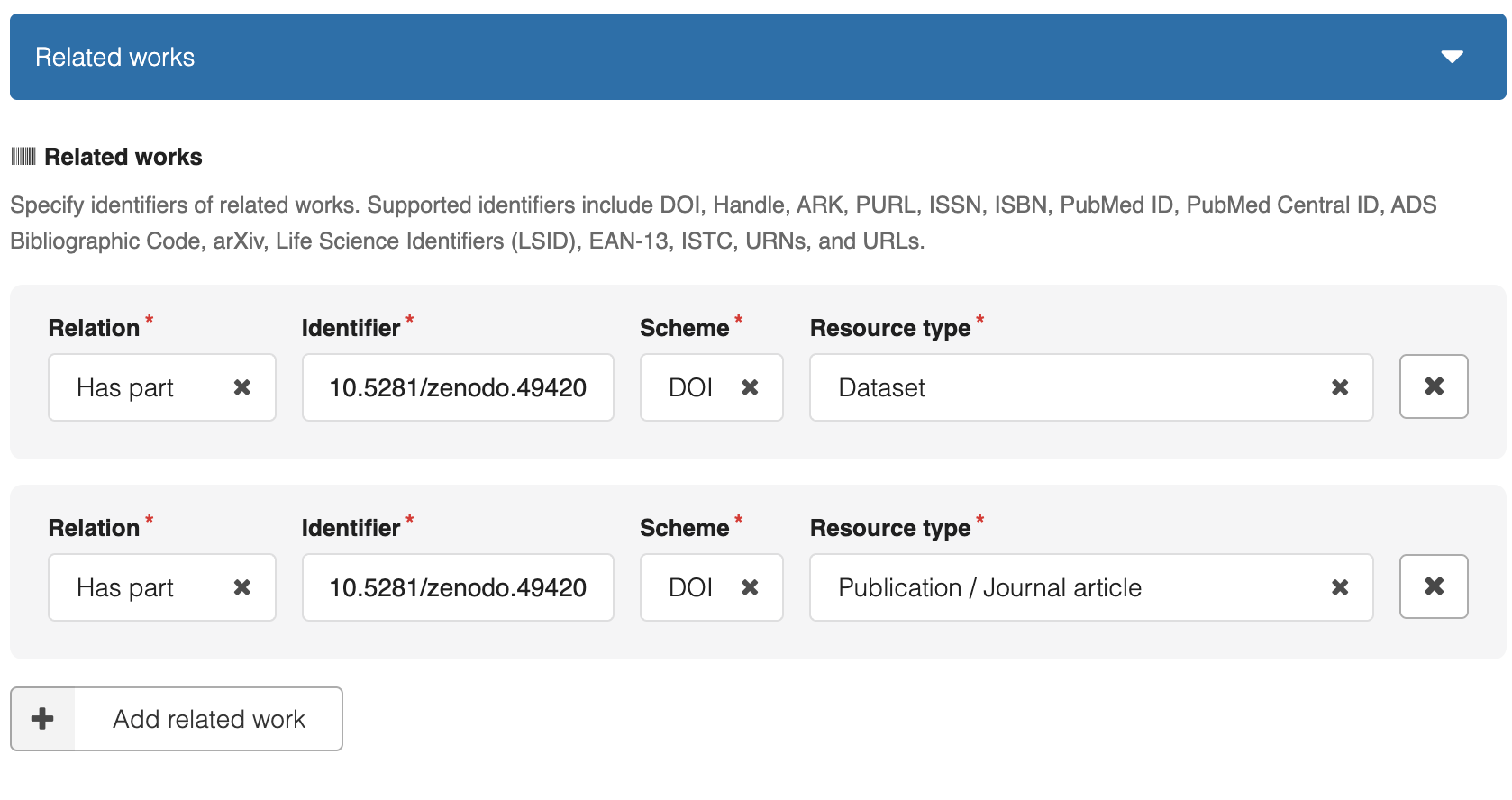
The Related Works functionality is a flexible way to connect a Zenodo record to any other public scholarly works and describe the relationship between them. For example, if a project and its components are all moved to Zenodo as separate records the structure can be replicated by:
- Create an overview Zenodo record for the former top-level OSF Project.
- Create separate Zenodo records for substantive components.
- On each component record, add the overview record under Related works → Is part of and define the resource type (data, code, presentation, etc).
- On the overview record, add each component under Related works → Has part and define the resource type.
- Use the component or overview record’s DOI when available; otherwise, use its URL.
Dataverse
Dataverse can also enable grouping related objects, similar to projects and components on OSF. However, Dataverse should be used for data primarily.
| OSF | Dataverse |
| Top-level Project | Dataverse collection |
| Component | Child Dataverse collection |
| File folders within project/component | Dataset |
| Wiki | Description or uploaded wiki file |
| Activity log | Uploaded activity log file |
| Contributors (cited vs uncited) | Roles can be set at the collection, child collection, and dataset level |
| Projects linked to registrations/preprints | Dataverse collection linked to OSF registration or preprint with the “Related publication” or “related material” metadata fields; OSF registration updated with link to Dataverse record via Resources |
Dataverse can preserve file paths and display files using a folder-like tree. Uploading a ZIP containing folders can populate the file-path information automatically, depending on the installation and upload method.
This Article Is Licensed Under CCO For Maximum Reuse.