
Add-ons
This Article Is Licensed Under CCO For Maximum Reuse.

Transition Impact on Add-ons
With OSF Projects moving to Read-only on February 19, 2027, key changes will occur to storage integrations, or add-ons. Connections with add-on storage locations such as Google Drive, Dropbox, Github, and One Drive will be maintained. This means they will continue to show updated lists of files available in those locations and will be accessible. Reauthentication to keep an existing connection, and the ability to connect and remove existing add-ons will still be available.
However, they will no longer be modifiable through the OSF interface (for example, the ability to upload a new file to the add-on will not be possible). No new storage add-ons can be configured for projects.
These changes are detailed in the table below.
|
|
Now - February 19, 2027 | February 19, 2027 - Beyond |
| Storage integrations can be re-authorized | YES | YES |
| Storage integrations can be connected | YES | NO |
| Storage integrations can be disconnected | YES | YES |
| Files can be added to storage integrations | YES | NO |
| Files can be viewed in storage integrations | YES | YES |
| Files can be downloaded in storage integrations | YES | YES |
| File actions (move, copy) can be performed between storage providers | YES | NO |
| Citation integrations can be connected | YES | YES |
| Citation integrations can be re-authorized | YES | YES |
| Citation integrations can be disconnected | YES | YES |
| Citation integrations can be viewed on the project overview page | YES | YES |
| Linked Services can be connected | YES | YES |
| Linked Services can be re-authorized | YES | YES |
| Linked Services can be disconnected | YES | YES |
View Connected Addons in your OSF Profile
All add-on integrations that you have connected to your OSF profile, cn be viewed from your Profile settings page “Configure addon & link service accounts” and then configured specifically for any project you wish to connect them to. From the left sidebar navigation, locate the Settings menu (cog icon). Expand the menu and select Configure add-on & link service accounts.

Disable or Reconnect from OSF Settings
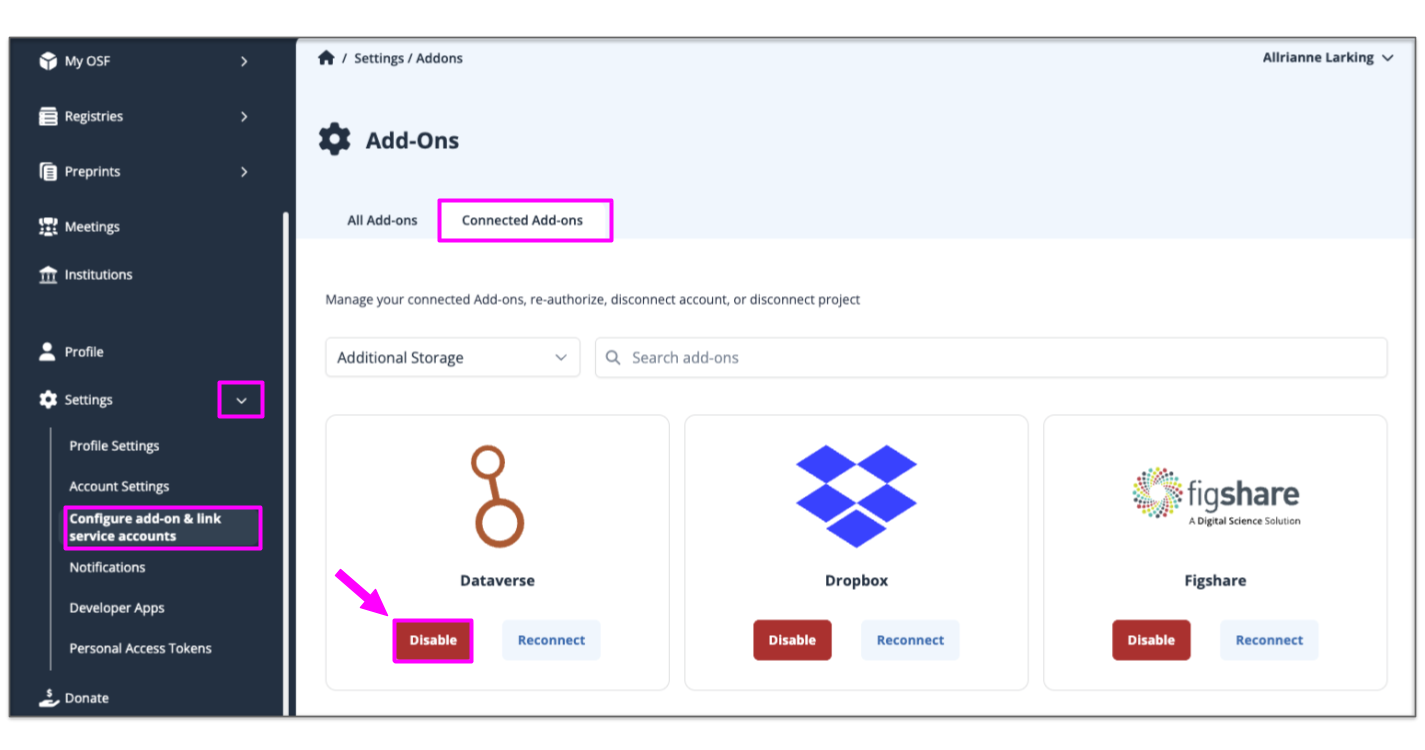
From the left sidebar navigation, locate the Settings menu (cog icon). Expand the menu and select Configure add-on & link service accounts. Select the Connected Add-ons tab to display your connected add-ons.
Disable
The red Disable button completely removes the add-on connection from your settings. For any projects this add-on was connected to, the add-on becomes non-functional and selected folders or filesets will no longer load or display. See Disconnect from a Project for instructions to cleanly remove add-on connections from individual projects.
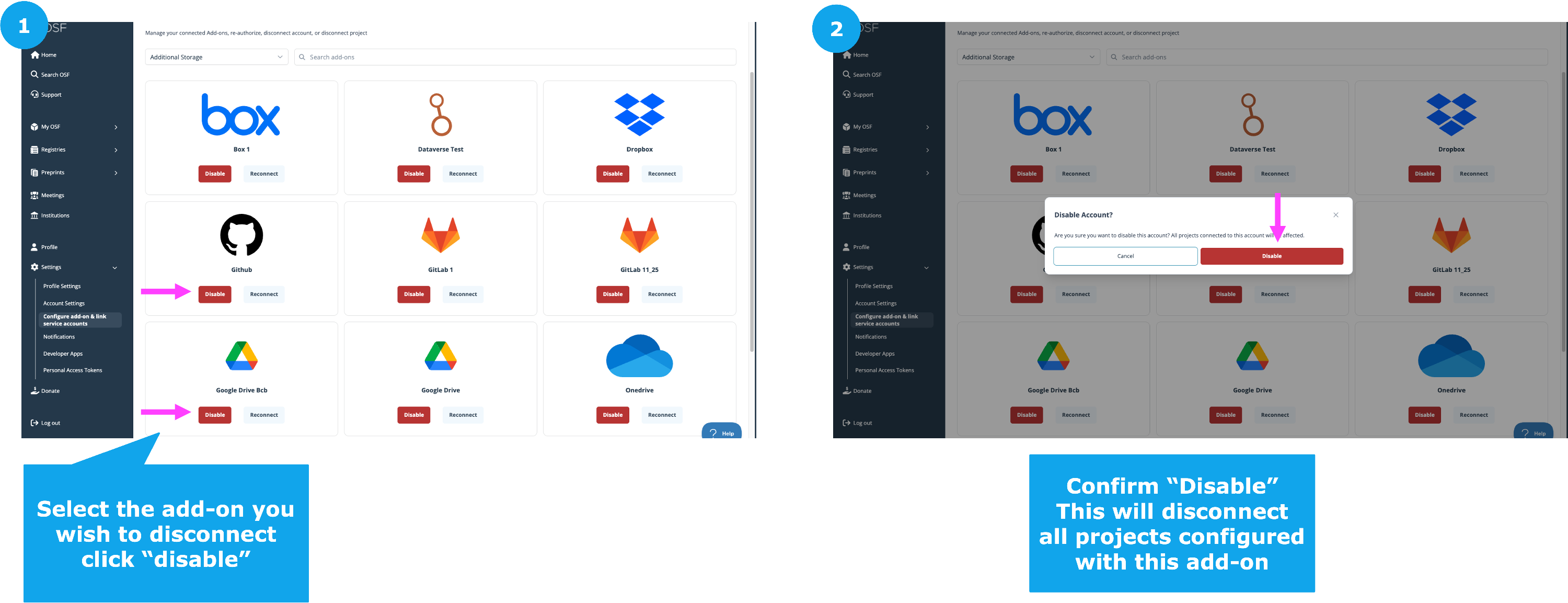
- Select the add-on you wish to disable.
- Confirm disable. NOTE: All projects that are configured with this add-on will be disconnected.
Reconnect & Reauthorize
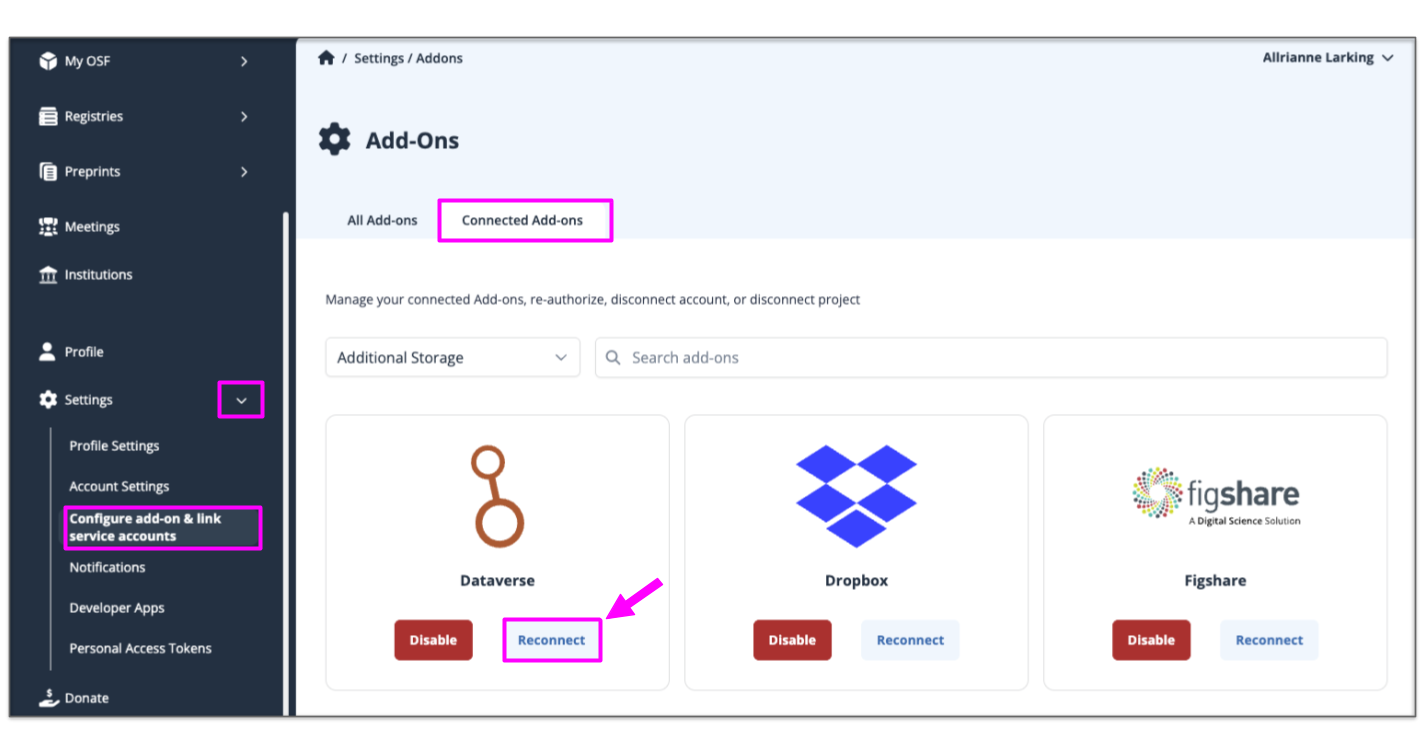
To reauthorize an add-on (in the case where your add-on password has changed or authorization has otherwise expired) click Reconnect and follow the steps to reauthorize. If you used an API Key or Access Token to authorize, you may need to create a new one from that add-on site.
Specific instructions for configuring individual Storage Addons can be found here.
If you need to download content directly from any projects that have external storage providers connected see these instructions.
Linked Services
There will be no changes to how Linked Services functions due to any OSF Project Transition Changes.
Citation Add-ons
There will be no changes to how Citation Add-ons function due to any OSF Project Transition Changes.
|
|
This Article Is Licensed Under CCO For Maximum Reuse. |